Monday, 21 April 2014

Using Computer as Wi-fi hotspot


Wireless - the world that we live in today. We want everything to be wireless. Our Music players, headphones and even our chargers are wireless. The Utility of wireless technology that we use most is Internet. Most people are switching from the sophisticated wired internet connection to the much simpler wireless internet. But even though wireless is so immensely popular, not everybody has access to it. At most places wi-fi network is password protected and unless you have hours to spend and moreover the knowledge required to hack into someone's wireless network, it is just going to be a teaser for you.
Another scenario is where you have an internet connection on your laptop and want to use it on all of your other devices. This is possible and is much easier to do. All you need is a wireless enabled computer which is connected to the internet and the 'Connectify' software and you can turn your computer into a wireless hotspot so you can connect all of your other devices to the internet.

Let the Sharing begin...

Download Connectify Hotspot from here (Full version).
Extract.
Now install Connectify Hotspot.
Once installation finishes, do not reboot your computer and do not launch connectify.
Open 'ConnectifyExit.bat'
Copy files from the 'Cracked' Folder and paste in "C:\Program Files\Connectify" or "C:\Program Files (x86)\Connectify"
Now reboot.
Open 'Connectify Hotspot'.
Cancel Updates.
If it says 'Service Not Running', Click 'Start Service' Button.
Once service is started,

  • Give your hotspot a name.
  • Choose a password.
  • Select which is the connection you want to share from the dropdown menu (it is the one you are browsing internet with on your Computer)
  • Keep 'Sharing mode' as 'Wi-Fi', click 'Start Hotspot' and enjoy.

Like us on Facebook to  show your support.
If You face any problems, leave a comment, we'll get back to you as soon as we can.
read more

Download apk from Playstore to PC


Well, at some time or the other, don't you just hate your neighbour for locking his/her wifi connection and not telling you the password? And when you want to download an app for your android phone but your trashy mobile plan won't allow you to download stuff doesn't it blow your mind off?
What if you are fond of an app and its newer versions are no longer shown in Playstore on your mobile?
Whatever the reason may be, all of us, at some time want to be able to just download the installation file (apk) on our PC and then install it on our android (side-load). That problem is solved now. A developer at evozi has introduced this new web-based application which lets you download the apk file directly from its playstore link. (You can only download the apps which are free, for obvious reasons)

Here's how it works:

First thing you need to do is go to: http://apps.evozi.com/apk-downloader


Now view the app you want to download on playstore, and copy it's URL.
If copying the URL doesn't work, just copy the part of url which is written after 'details?id='
Example:

 
Paste the copied part on the APK Downloader page and Click on Generate Download link button.
Enjoy your Download.
like us on facebook to show your support.
Leave a comment if you face any problem. We'd get back to you as soon as possible.
read more

Sunday, 13 April 2014

Hiding a folder using WinRAR

One of the things that all of us want is privacy. Be it on our computers, mobiles, social media or just whatever and wherever. But just like me, do you have a snooping brother/sister who always end up opening your rather personal folders. Well it happens all the time but what to do? How to make sure they can not open those folders where you store the 'not to be opened' kind of files? Well if you are looking to stop your friends from snooping around without having to use any softwares or advanced hacking tools other than the basic tools you have on your computer, you've just come to the right place because today we'll show you how to make a folder completely unopenable by using winRAR.
Before we start, just a quick note that this will work on all computers from windows 98 to windows 8.

So, let the Hiding begin!

Let's suppose that the folder you want to hide is named
Images
Right click on the 'Images' folder and select 'Add to archive...' option from the dropdown menu.
Just click on 'OK' straightaway.
You'll get a file named
Images.rar
Now delete the original 'Images' folder.
Right click on the 'Images.rar' folder and select 'rename' option.
Just rename the file and remove the '.rar' from its  name.
Your new Images file will not open now however much your friends may try.

How to re-open the folder?
Oops. That I don't know ;) (Just joking)

Rename the Images file again and add '.rar' to the name and voila! Your images folder will open in winRAR.


If you face any difficulties, leave a comment, our team will get to you as soon as we can.
If you liked this post, stay updated for more and don't forget to like us on facebook!
 
read more

Monday, 31 March 2014

Installing USB Drivers for Android Phones

This tutorial is written for devices running windows 7 only.
If you want to connect your android device to the ADB (Android Debug Bridge) you'll have to install the USB drivers for the android device on your ADB hosting computer. The first thing you need to do is download the drivers for your device from the OEM's (original Equipment manufacturer) website or you can do it easily from here:

Download USB drivers

***make sure you select the correct device from the table. Drivers for any other phone might not work***

Now, once you have downloaded the drivers, make sure you remember the download location, we'll need it.

Installing The drivers

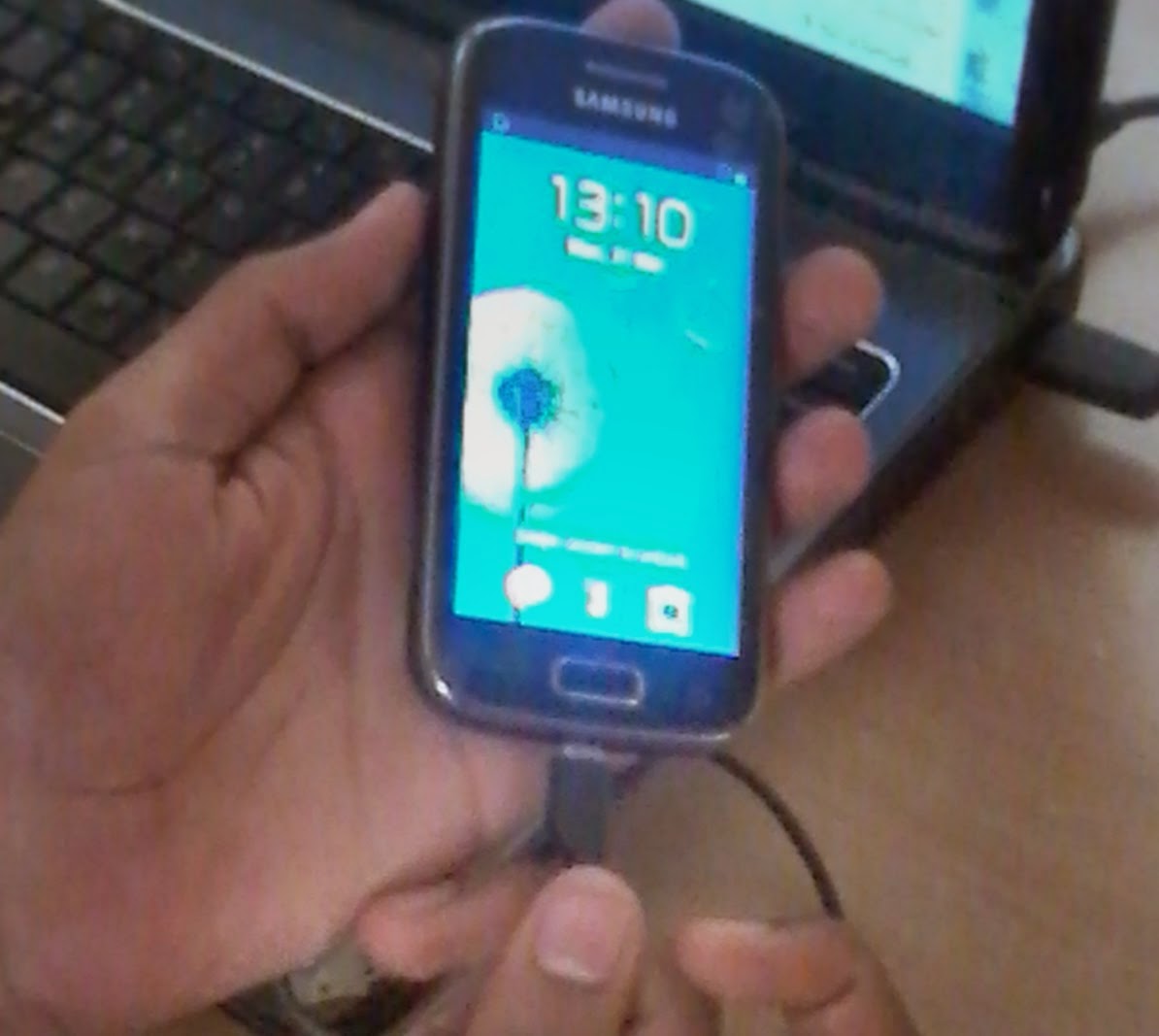
1. Go ahead and connect  your device to the PC using the USB cable.

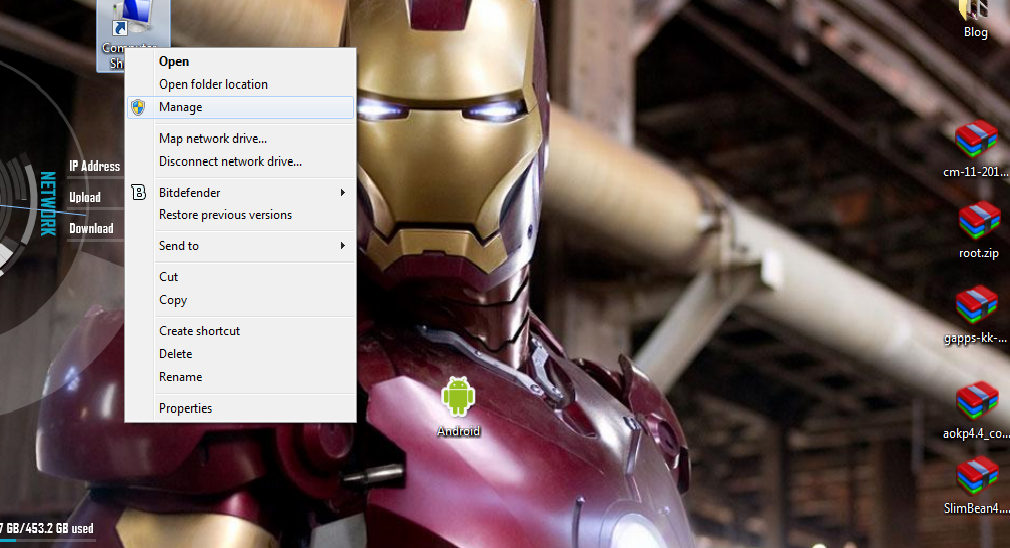
2. Right click on Computer icon and select manage.


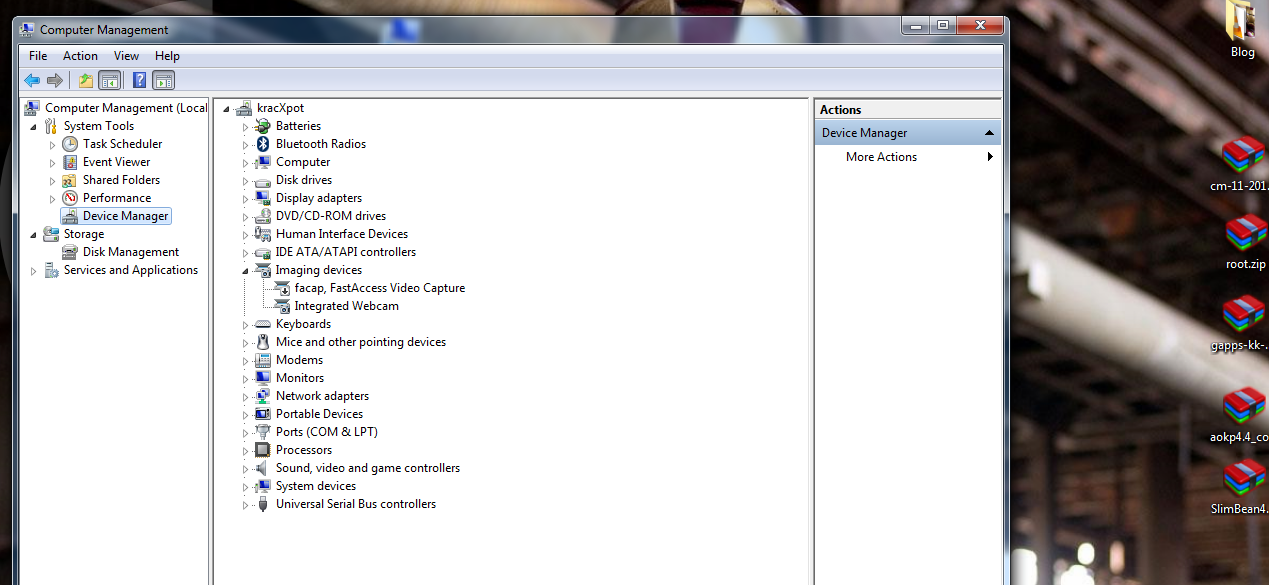
3. On the left pane, Select devices.


4. In the list displayed in the middle pane, select  and expand other devices. (Not shown in the photograph)
read more

Wednesday, 29 January 2014

Rainmeter [Desktop Customization] for windows 7 [Step 2]


This is the easy step, Installing Rainmeter on your windows 7 PC.
Rainmeter is a free software, so just downlaod and istall it off the rainmeter official site.

Visit www.rainmeter.net
Direct Download Rainmeter 3.0.2 Final Release (r2161): 
Download

click to begin

2.1MB .zip


Please Note: Rainmeter works with windows XP SP3 and above.

read more

Sunday, 26 January 2014

Rainmeter [Desktop Customization] for windows 7 [Step 1]


Okay, here it is, my rainmeter tutorial. After my Facebook photo
https://www.facebook.com/photo.php?fbid=353252344817602&set=a.353252304817606.1073741837.100003985195807&type=1&theater&notif_t=like
and Aditya Nayak's
https://www.facebook.com/photo.php?fbid=563789170378761&set=a.133419096749106.29984.100002430504270&type=1&theater&notif_t=like
generated quite some liking, I've decided to teach everyone how they can customize their desktop using rainmeter. But first, there's a little tweaking you'll have to do. It can be done manually which is quite tough, so just do it using the 'Theme Resource Changer'.
read more

Wednesday, 8 January 2014

Dll File Fixer


Ever got the "dll file missing" error when you tried to play your favorite game or installed a new software? Dll-files fixer is a great utility which has will allow you to easily search and download whichever .dll file you need for free and automatically install it to your PC. It also comes with great utilities which can repair your registry and help solve other problems on your PC.

DLL-files Fixer allows access to an extensive .dll file library for you to download and install using a simple search-and-click installation procedure, automatically resolving dll-errors.


This download includes Crack file which gives you UNLIMITED Registration.

How To Install:

1. Download from link given below.
2. Extract downloaded File using WinRAR or any other extraction tool you have.
3. From extracted folder, open the file "dffsetup.exe"

read more